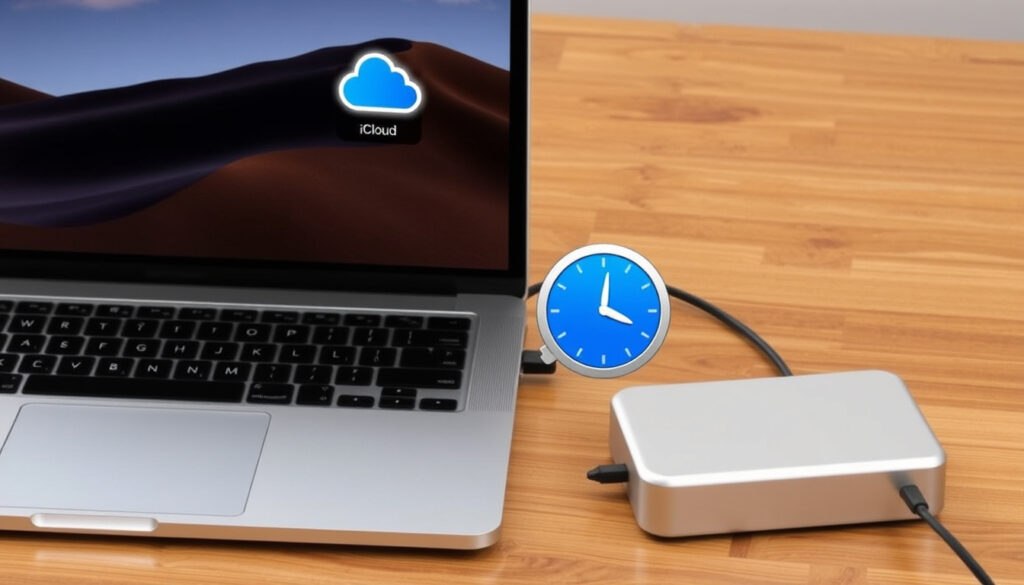
How to Back Up a MacBook: iCloud, Time Machine & External Drive
Backing up your MacBook protects your data against hardware failure, theft, or accidental deletion. This guide compares Apple’s three primary backup methods—Time Machine, iCloud, and external hard drives—across cost, speed, and reliability so you can choose the best fit for your needs.
Key numbers at a glance: Free iCloud storage: 5 GB · Paid iCloud tiers: 50 GB, 200 GB, 2 TB · Max external drive capacity supported: up to 20 TB · Typical first Time Machine backup (100 GB): 2–4 hours via USB 3.0 · Primary backup methods for Mac: 3 (Time Machine, iCloud, manual external)
iCloud Backup
- Automatic, wireless
- 5 GB free; paid plans up to 2 TB
- Syncs files and settings
- No full system restore
Time Machine (External Drive)
- Full system snapshots hourly/daily/weekly
- Requires external drive (USB/Thunderbolt)
- Can restore entire system
- Local only; drive failure risk
Manual External Drive
- Drag and drop files
- Any capacity drive; one-time cost
- Full control but no automation
- Best for selective file backups
Combined Strategy
- Time Machine + iCloud gives redundancy
- Covers local restore and cloud sync
- Mitigates single‑point‑of‑failure risks
- Recommended by Apple Support
| Metric | Value |
|---|---|
| First Time Machine backup size | Equal to used storage on Mac (e.g., 500 GB for 512 GB drive) |
| iCloud backup data types | Desktop & Documents, Photos, Mail, Contacts, Calendars, Safari settings |
| Time Machine restore compatibility | Works only with macOS 10.15 or later |
| Average backup frequency (Time Machine) | Every hour for the past 24 hours, then daily |
How do I backup my entire Mac?
Apple offers three official backup methods, each suited to different priorities. Time Machine creates hourly incremental backups of your entire system to an external drive. iCloud syncs selected files and settings wirelessly but does not produce a bootable system image. Manual external drive backup lets you copy specific files by dragging them to a USB disk.
What are the main backup options for a Mac?
- Time Machine: Built into macOS, uses an external drive, and captures hourly snapshots for the past 24 hours, then daily. (Apple Support – Time Machine overview)
- iCloud: Syncs files, photos, contacts, calendars, and passwords across devices. Requires an Apple Account and Wi‑Fi. (Apple Support – iCloud overview)
- Manual external drive: Drag files to a USB or Thunderbolt drive. Full control, no automation. (Apple Support – manual backup method)
Should I use multiple backup methods?
Apple recommends using at least two methods for redundancy. Combining Time Machine (local full restore) with iCloud (off‑site sync) protects against both drive failure and physical disasters.
“Apple recommends using a combination of Time Machine and iCloud for the best protection.”
CNET editor, advice on Mac backup redundancy
Bottom line: For comprehensive protection, use Time Machine for full system backups and iCloud for continuous file sync. This combination covers local disaster recovery and remote access.
How do I backup my Mac to iCloud?
iCloud backup is not a full system backup; it syncs specific data types. To enable it, go to System Settings > Apple ID > iCloud and toggle on the services you want to back up.
Does a Mac automatically back up to iCloud?
Yes, when your Mac is connected to power and Wi‑Fi, iCloud automatically syncs files from Desktop & Documents, Photos, Mail, Contacts, Calendars, and Safari settings. (Apple Support – iCloud automatic backup)
How do I know if my MacBook is backed up to iCloud?
Open System Settings > Apple ID > iCloud. The status bar shows which services are turned on and the last sync time. iCloud Drive syncs files in real time; check the iCloud tab in Finder for upload progress.
How to backup MacBook to iCloud before factory reset
- Ensure your Mac is connected to Wi‑Fi and plugged into power.
- Open System Settings > Apple ID > iCloud.
- Turn on iCloud Drive, iCloud Photos, and any other data you want to keep.
- Wait for the “Syncing” indicator to finish (check status in System Settings or iCloud Drive folder).
- Optionally, verify by signing into iCloud.com and seeing your files.
Will I lose my photos if I turn off iCloud backup?
Turning off iCloud Photos gives you the option to keep a local copy of your photos on the Mac. If you choose to remove them from the device, they will be deleted. (Apple Support – iCloud Photos toggle)
“Turning off iCloud Photos will prompt you to keep or remove local copies—choose wisely before a factory reset.”
Apple Support documentation
What this means: iCloud is best for syncing essential data across devices, not for a full system restore. Always verify that syncing is complete before performing a factory reset.
How do I backup a Mac to an external hard drive?
Using an external drive with Time Machine gives you a full system backup that can restore the entire Mac. Alternatively, you can manually copy files for selective backup.
How to backup MacBook to Time Machine
- Connect an external drive formatted as Mac OS Extended (Journaled) or APFS. (Apple Support Community – recommended format)
- Open System Settings > General > Time Machine.
- Click “Add Backup Disk” and select your drive.
- Choose whether to encrypt the backup (recommended). Set a password and hint if encrypted.
- Click “Set Up Disk.” Time Machine will begin the first backup automatically. You can continue using your Mac.
Note: The first backup copies all used storage and can take 2–4 hours for 100 GB over USB 3.0. Subsequent backups are incremental and faster. (Apple Support (YouTube) – Time Machine setup)
What is one drawback of using an external hard drive for backup?
External drives are local and can fail, be lost, or stolen. They offer no off‑site protection. Additionally, if you back up a disk that already contains Time Machine backups, it can cause errors. (Apple Support Community – warning about duplicate backups)
“Time Machine should not be used to back up a disk that already contains Time Machine backups.”
Apple Support Community
The catch: External drives are cost‑effective and allow full system restore, but they require physical security and are vulnerable to local hazards. Pair with a cloud backup for safety.
How to back up MacBook without external hard drive
If you don’t have an external drive, you can use iCloud sync or Migration Assistant to transfer data to another Mac. Third‑party services like Dropbox or Google Drive can also supplement file backup.
How to back up MacBook to new MacBook
Use Migration Assistant (found in Applications > Utilities) over Wi‑Fi or a direct Thunderbolt connection. It transfers users, apps, and settings from one Mac to another. (Apple Support – Migration Assistant)
How to back up MacBook Air to iCloud
The process is the same as any Mac: enable iCloud Drive, Photos, and system services via System Settings. Ensure Wi‑Fi and power are connected. iCloud does not back up the operating system or applications, only user data.
Third‑party cloud services (Dropbox, Google Drive) can be set to sync specific folders. They are not a substitute for a full backup but provide extra redundancy. (Apple Support – third‑party tools)
The pattern: Without an external drive, you rely on cloud sync for data but lose the ability to restore the entire system. For complete protection, eventually invest in a drive for Time Machine.
What is the best way to backup my Mac?
The best method depends on your priorities: portability, cost, restoration speed, or redundancy. The table below compares the three primary methods.
Which method fits your needs? Here is a head‑to‑head comparison.
| Feature | iCloud | Time Machine | Manual External Drive |
|---|---|---|---|
| Cost | Free 5 GB; paid 50 GB–2 TB ($0.99–$9.99/mo) | One‑time cost of external drive | One‑time cost of external drive |
| Speed (restore) | Download time depends on internet speed | Fast local restore via USB/Thunderbolt | Manual copy speed |
| Reliability | Off‑site, redundant Apple servers | Local, single drive failure risk | Local, single drive failure risk |
| Ease of restoration | Partial restore (syncs data) | Full system restore possible | Drag‑and‑drop |
| Automation | Automatic when connected to power and Wi‑Fi | Automatic hourly backups | None |
The implication: Each method has trade‑offs. For most users, a combination of Time Machine (for full system restore) and iCloud (for off‑site data sync) offers the best balance.
Pros and cons of iCloud backup
Pros
- Automatic and wireless
- Off‑site storage (Apple data centers)
- Syncs across all Apple devices
- Easy to set up
Cons
- 5 GB free is very limited
- No full system restore
- Requires internet for backup/restore
- Subscription cost for large storage
Pros and cons of Time Machine
Pros
- Full system snapshots
- Fast local restore
- Automatic incremental backups
- Can exclude specific files from backup
Cons
- Requires external drive (additional cost)
- Drive can fail or be lost
- First backup is slow
- No off‑site protection
Pros and cons of manual external drive backup
Pros
- Full control over what to back up
- No subscription fees
- Works with any external drive
- Can be used for selective files
Cons
- No automation
- Requires manual discipline
- No version history
- Drive failure risk
Best backup strategy for different user profiles
- Casual user (few files): iCloud (free 5 GB) + occasional manual copy to USB drive.
- Professional / heavy data user: Time Machine (external drive ≥2× Mac storage) + iCloud (paid 200 GB+).
- Before factory reset: Time Machine full backup + iCloud sync verification.
- Migrating to new Mac: Time Machine backup restored via Migration Assistant, plus iCloud sync.
Bottom line: The best strategy is a two‑tier approach: use Time Machine for full local restore and iCloud for off‑site data sync. This combination provides robust protection against both hardware failure and data loss.
For en mer detaljert gjennomgang av de ulike metodene, kan du lese vår guide til sikkerhetskopiering av MacBook som sammenligner iCloud, Time Machine og eksterne disker.
Frequently Asked Questions
How do I schedule automatic backups on Mac?
Time Machine runs automatically once set up; you cannot change the schedule in macOS. iCloud syncs automatically when the Mac is on Wi‑Fi and power. For manual scheduling, use a third‑party tool.
Can I back up my Mac to iCloud without paying?
Yes, but only 5 GB is free. Most users need a paid plan (50 GB, 200 GB, or 2 TB) for meaningful backup.
How much does it cost to back up a Mac to iCloud?
50 GB: $0.99/month, 200 GB: $2.99/month, 2 TB: $9.99/month. Prices per Apple’s iCloud+ plans.
What format should my external hard drive be for Time Machine?
Mac OS Extended (Journaled) or APFS. APFS is recommended for macOS 10.13 or later. (Apple Support Community)
Does Time Machine back up applications and system files?
Yes, Time Machine backs up the entire system, including applications, system files, and all user data. You can restore the full macOS from a Time Machine backup.
How do I restore a Mac from a Time Machine backup?
Start up in macOS Recovery (Command+R), choose “Restore from Time Machine Backup,” select the backup date, and follow prompts. (Apple Support (YouTube))
Can I back up my Mac to multiple external drives simultaneously?
Time Machine supports only one backup disk at a time. You can switch disks manually but cannot run two simultaneous Time Machine backups.
What happens if my iCloud storage fills up during backup?
iCloud stops syncing and sends a notification. You must free up space or upgrade your storage plan to continue.
Related reading: USB-C Adapter – Valg, bruk og fordeler med Apple og Samsung | Incident Response Plans – NIST Guide to Reduce Breach Costs
Flere relaterte innlegg
 Payasam Near Me: Best Delivery & Health Benefits (2025)
 Espen Barth Eide – Norges utenriksminister og karriere
 Айфон 17 про макс: обзор и сравнение с 16 про макс
 Bodø/Glimt mot Inter: Forventet oppstilling
 Åpningstider Systembolaget Strömstad – oversikt og påskeinfo
 Jakob Margido Esp – dødsårsak, karriere og Flettfrid
 Bare Minerals Medium Beige: Hudtone, Varm eller Kjølig? Guide
 Be te jampo mot fla : behandling og tip